How to Actually Read Your YouTube Comments (Without Losing Your Mind)
A step-by-step guide to using CommentsMiner's free extractor, Main Miner report, and Golden Cards — plus a DIY method for the stubborn ones who want to do it themselves first.
Most creators have a complicated relationship with their comment section. You know there's something useful in there — real feedback, real content ideas, real proof that people watched past the three-minute mark — but digging through hundreds of comments looking for patterns is the kind of task that starts feeling productive and ends with you rage-reading a six-month-old argument between two strangers about your camera settings.
There's a better way. Actually, there are three of them — one for free, one that does the whole job automatically, and one that turns your best comments into something you can actually post. Here's all three, in the order that makes the most sense to try them.
Method 1: The Free DIY Approach (No Account Required)
If you're not ready to commit to any tool yet — completely reasonable — here's how to get real insight from your comments for free, using CommentsMiner's comment extractor and a large language model like ChatGPT or Gemini that you probably already have open in another tab.
Step 1: Extract Your Comments
Go to CommentsMiner's free comment extractor, paste your YouTube video link, and download your comments as a CSV or plain text file. No account needed, no login, just paste and export. This gives you the raw material — every public comment on that video, pulled via the official YouTube Data API, in a format you can actually work with.
Step 2: Feed Them Into an LLM With a Real Prompt
Open ChatGPT, Gemini, or whichever LLM you prefer, and paste your comments in with a prompt that actually tells it what to do. Generic prompts get generic results — here's one that works:
"Here are the comments from my YouTube video. Please do the following:
1. Group them into 4-6 themes based on what people are actually discussing (not just positive/negative — real topics like "content requests," "editing feedback," "questions about gear," etc.) 2. Calculate roughly what percentage of comments fall into each theme 3. List the top 5 questions people asked that I haven't fully answered 4. Pull out the 3 most specific, actionable pieces of criticism (skip the vague ones) 5. List the top 3 things people explicitly asked me to make a video about 6. Give me an overall sentiment score as a rough percentage — positive, neutral, negative
Here are the comments: [paste your comments here]"
This prompt is doing the work that would otherwise take you two hours of manual scrolling. The LLM won't be perfect — it'll occasionally miscategorize something or miss a nuance — but the output will be dramatically more useful than reading comments one by one and relying on vague memory.
What You Get
A rough but genuinely useful breakdown: what your audience is talking about, what they want next, what specifically frustrated them, and how the overall mood skewed. For a quick one-off check on a single video, this method works well and costs you nothing beyond the time to set it up.
Where It Falls Short
Three real limitations worth knowing before you start:
- Context window limits — most free LLM tiers can only process a few thousand words at once. A video with 500+ comments will need to be chunked into multiple prompts, and you'll need to manually consolidate the results. Tedious.
- No consistency across videos — you're running a fresh prompt each time, which means your "theme" categories will drift between videos. Comparing one video's results to another is apples to oranges unless you're very disciplined about using identical prompts every time.
- No visual output — you're getting a wall of text. Useful for your own research; not something you can hand to a collaborator or post anywhere.
If any of those limitations are already annoying you, that's exactly what Method 2 is for.
Method 2: The Main Miner — Automated Full Report
This is CommentsMiner's flagship feature, and what the tool was primarily built around. You paste a video link. It extracts every comment, clusters them into named themes, scores sentiment, flags the top audience questions and content requests, runs a toxicity check, and delivers a complete structured report — all without a single copy-paste or prompt to write.
Here's what a real Main Miner report actually looks like: → View a sample report
What's in the Report
Comment Health Score — a single A-F grade at the top, so you know immediately whether you're dealing with a healthy comment section or one that's being dragged down by spam and toxicity before you read anything else.
Sentiment Breakdown — positive, neutral, and negative percentages with a polarity score, calculated across every comment, not just the visible top ones.
Topic Clusters — automatically grouped themes with labels like "Content Requests," "Editing Feedback," "Audience Questions," "Camera & Gear," "Personal Reactions" — whatever actually fits that video's comment section, not a fixed generic list.
Top Questions — the specific questions your audience asked most often, surfaced and ranked so you can answer them in a pinned comment or turn the most common one into your next video.
Content Request Radar — a ranked list of the videos your audience explicitly or implicitly asked you to make next. This is the closest thing to a free content calendar you'll ever get.
When to Use It
Honestly, any video you actually care about. The free DIY method is fine for a quick sanity check — Main Miner is what you use when you want the real picture, when you're planning your next few videos based on what people said, or when you're preparing for a brand pitch and want real audience data to point to rather than just "my gut feeling says they love this."
Credits are consumed by comment count (1 comment = 1 credit), so a 200-comment video costs 200 credits. The $5 starter pack gets you 10,000 credits, valid for a year — which covers a lot of videos before you need to think about topping up.
Method 3: The Golden Card — Best Comments, Ready to Share
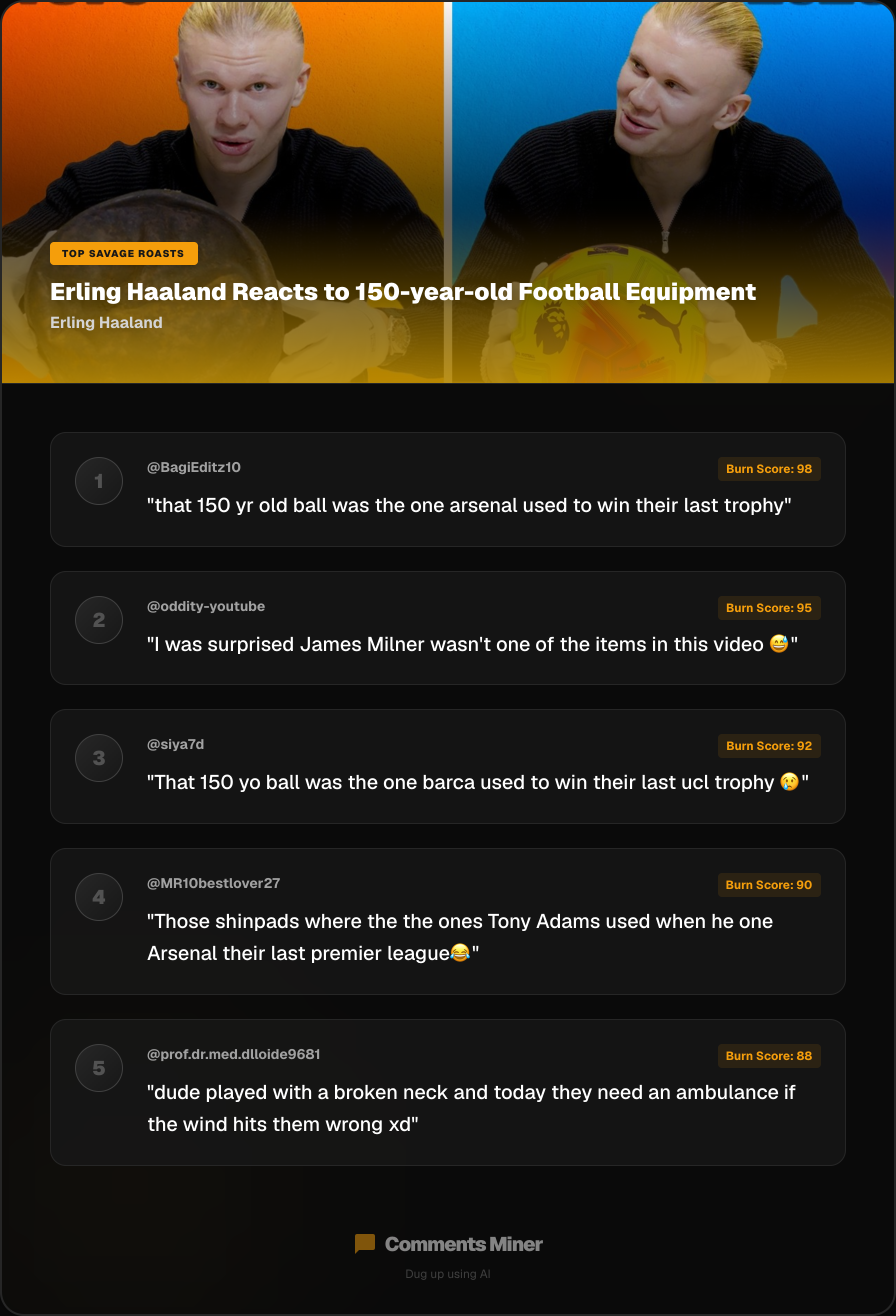
The third tool is a different beast entirely. Where Main Miner gives you a private analytical report, the Golden Card gives you something public-facing: a polished, branded graphic that surfaces the best comments from a specific angle — constructive feedback, funniest reactions, most heartfelt responses, strongest praise — formatted as a shareable image for Instagram, Facebook, or X.
Here's what a real Golden Card looks like:
How It Works
Pick your video, pick your angle — Constructive Feedback, Roast Mode, Heartfelt Reactions, Fan Appreciation — and CommentsMiner pulls the comments that best match that category, ranks them by relevance and quality, and generates a card in your chosen format. The whole thing takes about 30 seconds.
Each comment costs 0.5 credits (half the rate of Main Miner), since this is a lighter task — selecting and ranking rather than deep clustering.
What to Actually Do With It
Post it. That's the whole point. Creators who share "what my audience said" content consistently see strong engagement because it's genuinely interesting to viewers who also commented — they want to see if they made the cut, and they want to know what other people thought. It's also the kind of content that gets shared by the creator being quoted, which extends your reach to their audience without any additional effort on your part.
The "Constructive Feedback" angle specifically works well as a recurring format — it signals to your audience that you're actually reading their comments and taking them seriously, which tends to increase both comment volume and comment quality over time.
Which Method Should You Start With?
Honestly, try them in order — at least once.
Start with the free DIY method on a video you already know well, so you can gut-check whether the LLM's output matches what you'd have said yourself. This builds your intuition for what good comment analysis actually looks like.
Then run the same video through Main Miner and compare. The gap between what you get from a manually-prompted LLM versus a purpose-built tool is usually pretty instructive — and once you've seen the difference, you'll know exactly which situations warrant which approach.
Then try the Golden Card on whichever video has the most memorable comments — positive, negative, or somewhere in between — and post it. See what happens. The engagement data on that single post will tell you more about whether this format works for your audience than any amount of theorizing.
The free extractor is at commentsminer.com. Everything else lives there too.